
Image optimization isn't just about compression and site speed. It's also a direct driver of organic search traffic and social media engagement. Search engines rely on file names and alt text to understand what an image shows, and social platforms rely on meta tags to build the link preview card people actually see before they click.
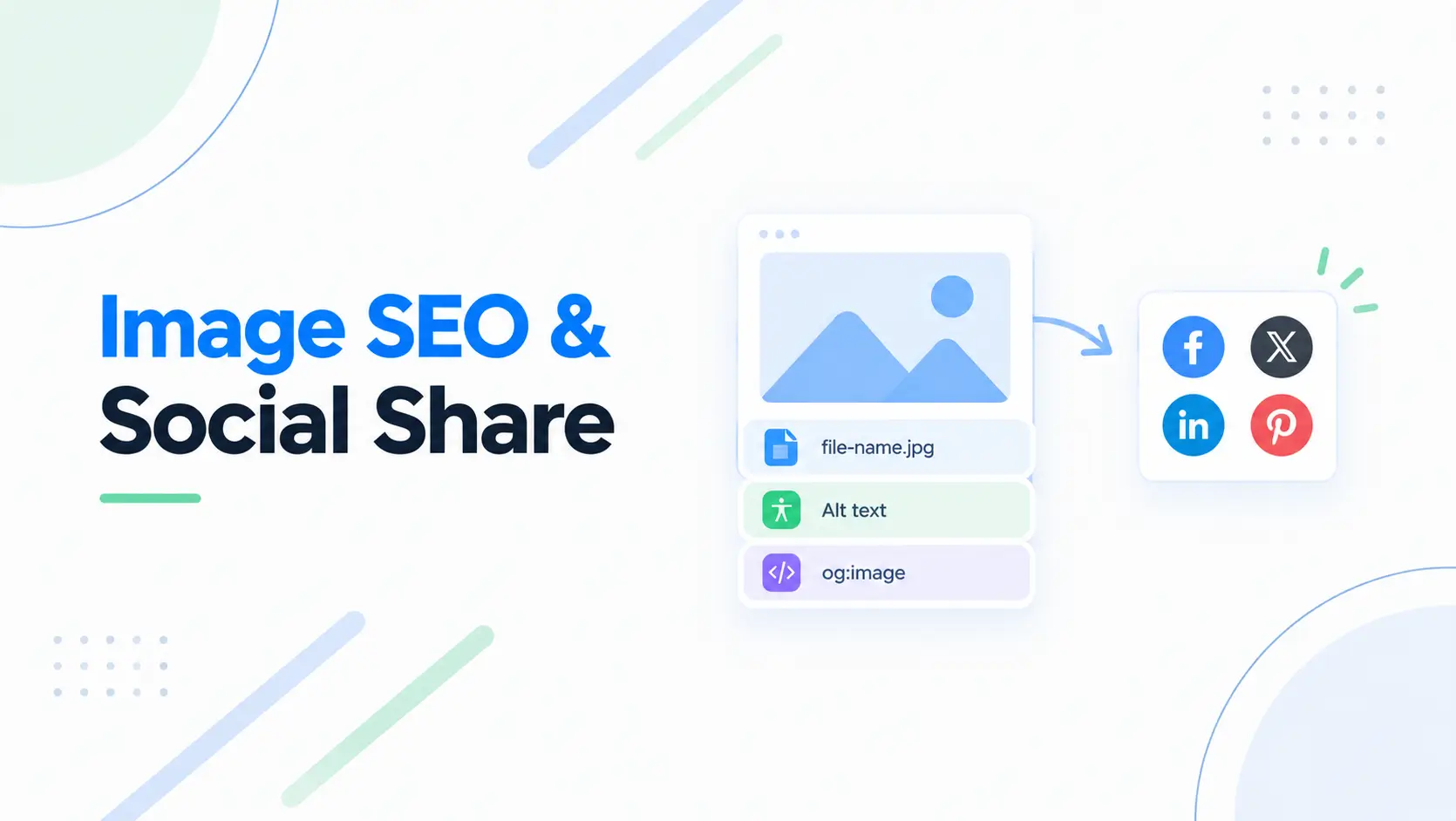
Welcome back to BytebaseX. I'm Suptojit Modak, and in this tenth installment of the Image Optimization series, I'll go through file naming, writing alt text that actually helps rather than just following a template, and setting up og:image tags correctly across every major platform, including a couple of platform-specific gotchas most guides skip. If you missed the previous post on fixing image-driven Core Web Vitals, you can read it here.
1. Descriptive File Names
Search engine crawlers read your image file name before they have any other context about what the image shows. A default camera name like IMG_9482.jpg or a vague label like banner-final-2.png tells Google nothing.
- Bad file name:
photo123.jpg - Good file name:
red-running-shoes-side-view.jpg
The rules here are simple: use lowercase letters, separate words with hyphens rather than underscores or spaces (Google reads a hyphen as a word boundary, but treats an underscore as joining two words into one), and include one or two relevant keywords without cramming in every term you're trying to rank for. Three to six descriptive words is the practical range. Rename the file before you upload it, since most platforms, including Blogger, don't let you rename an image's URL after the fact without breaking the link.
This matters more than it might seem, because the file name also becomes part of the image's URL, and Google treats the URL path itself as a minor but persistent ranking signal, separate from the alt text or the page content around it. A URL like /images/red-running-shoes-side-view.jpg reinforces the same keywords your alt text and page content already establish, while /images/img_9482.jpg contributes nothing and can very slightly work against you if every other signal on the page is trying to establish relevance for a specific topic.
2. Writing Alt Text That Actually Helps
The alt attribute does three jobs at once: screen readers announce it aloud for visually impaired visitors, browsers display it if the image fails to load, and search engines use it to understand and index the image. Getting alt text right matters for real accessibility, not just for a ranking checkbox.
<img src="laptop-dark-mode-code.webp"
     alt="Developer editing HTML code on a dark mode laptop screen"
     width="800"
     height="500">
Describe Function and Context, Not Just What's Visible
The most common mistake in alt text isn't grammar or length, it's writing a literal visual description instead of thinking about why the image is on the page. Ask yourself what a visually impaired visitor would miss if they couldn't see this image at all. That answer is your alt text. A product photo on an e-commerce page needs the product name and key detail, not just "shoe." A screenshot inside a tutorial needs to describe what the screenshot demonstrates, not just "screenshot of settings menu."
Length and Style
- Keep it to roughly 80 to 125 characters. Long enough to be genuinely descriptive, short enough that a screen reader doesn't lose the listener partway through.
- Write for humans first. A natural sentence describing the image beats a comma-separated list of keywords every time, and keyword stuffing here actively hurts both accessibility and SEO.
- Skip "image of" or "photo of." Screen readers already announce the element as an image before reading the alt text, so these words are redundant filler that eats into your character budget for nothing.
- Match the surrounding context. If the image illustrates something already fully explained in the paragraph next to it, a short, simple alt text is fine; you don't need to repeat every detail the text already covers.
Two Cases People Often Get Wrong
Decorative images, like a background pattern, a divider line, or a stylistic flourish that adds nothing informative, should use an empty alt="" attribute, not a description and not a missing attribute entirely. An empty alt tells a screen reader to skip the image cleanly, while a missing alt attribute forces some screen readers to read out the file name instead, which is a worse experience.
Functional images, meaning an image that acts as a button or a link, need alt text describing the destination or action, not the image's appearance. If your logo doubles as a link back to your homepage, the alt text should be something like alt="BytebaseX home", not alt="BytebaseX logo". The visitor using a screen reader needs to know what happens if they activate it, not what it looks like.
Does Lazy Loading Break Alt Text Indexing?
If you followed the earlier post in this series on native loading="lazy", you might wonder whether lazy-loaded images still get their alt text read and indexed properly. They do. The alt attribute is present in the HTML source from the very first load, regardless of whether the image itself downloads immediately or later, so search engines and screen readers see it right away. This is one more reason native lazy loading, rather than the older JavaScript approach that swapped in a placeholder data-src, is the safer choice: nothing about your alt text or SEO signal is delayed just because the image download itself is deferred.
3. Setting Up og:image and Twitter Card Tags
When someone shares your link on Facebook, LinkedIn, X, Slack, or Discord, these platforms don't screenshot your page. They read specific meta tags in your HTML <head> to build a preview card, and if those tags are missing or wrong, you either get no image at all or a broken, awkwardly cropped one.
<!-- Open Graph tags, read by Facebook, LinkedIn, Slack, Discord, WhatsApp -->
<meta property="og:image" content="https://www.bytebasex.com/images/blog-cover-og.jpg">
<meta property="og:image:width" content="1200">
<meta property="og:image:height" content="630">
<meta property="og:image:alt" content="BytebaseX Image SEO Guide preview card">

<!-- Twitter/X specific tags -->
<meta name="twitter:card" content="summary_large_image">
<meta name="twitter:image" content="https://www.bytebasex.com/images/blog-cover-og.jpg">
One detail that trips people up: the URL in these tags must be a full, absolute URL, including https://, not a relative path like /images/blog-cover-og.jpg. Social platform scrapers fetch this URL directly from their own servers, and a relative path that works fine in a browser resolves to nothing when a scraper tries to load it.
The Real Dimension and Format Rules, Platform by Platform
Most guides just say "1200 by 630 pixels" and stop there, but the actual requirements vary enough by platform that it's worth knowing where the edge cases are.
| Platform | Recommended Size | Minimum Size | Max File Size | Format Notes |
|---|---|---|---|---|
| Facebook / Meta | 1200 × 630 px | 600 × 315 px | 8 MB | JPEG, PNG, or WebP. Below 200 × 200, Facebook ignores the tag entirely. |
| X (Twitter) | 1200 × 630 px | 300 × 157 px | 5 MB | JPEG, PNG, WebP, or GIF. Requires twitter:card set to summary_large_image. |
| 1200 × 627 px | 200 × 200 px | 5 MB | JPEG or PNG only. WebP is not supported here, unlike Facebook and X. | |
| Slack / Discord / WhatsApp | 1200 × 630 px | Varies, low | 5 to 8 MB | All read standard og:image tags directly. |
Two things worth calling out from this table. First, LinkedIn doesn't support WebP for its preview image, even though Facebook and X both do. If you're serving og:image from the same WebP file you use elsewhere on your site to save bandwidth, LinkedIn will quietly fail to render a preview at all. Keep your og:image specifically as JPEG or PNG to stay safe across every platform, even though this one image is such a small part of your total page weight that the file size trade-off barely matters. Second, Facebook has a hard minimum: anything below roughly 200 × 200 pixels gets ignored completely, and anything below 600 × 315 renders as a small, unappealing thumbnail instead of the large card format that actually drives clicks.
One more practical tip: keep any text or logo inside your og:image within the center 1080 × 600 area of your 1200 × 630 canvas. Different platforms crop slightly differently at the edges, and content sitting too close to the border can get clipped on some platforms even though it looks fine in your original file.
Testing Before You Publish
Social platforms cache preview cards aggressively, sometimes for days, so if your first attempt at an og:image is wrong, simply fixing the tag on your site won't update what people see when they share the link; you need to force the platform to re-scrape it. Facebook's Sharing Debugger and LinkedIn's Post Inspector both let you paste in a URL, see exactly what tags they read, and force a fresh scrape. Running your URL through both before you publish catches a wrong dimension, a missing tag, or a broken relative path before it becomes a stale cached preview that's annoying to fix later.
Conclusion
Image metadata is the bridge between technical optimization and actual visibility. Descriptive file names and thoughtful alt text help search engines understand and index your images correctly, which is worth doing well even beyond the SEO angle, since it's also genuine accessibility work. A properly configured og:image, tested on the platforms your audience actually shares to, turns a plain link into a preview card people actually want to click. None of this replaces the compression and format work from earlier in this series, but it's the layer that decides whether anyone sees your images in the first place.
This post is part of the ongoing Image Optimization series on BytebaseX. In the next guide, I'll review the best free image compression tools, including TinyPNG and Squoosh, to help you build a faster, more automated workflow.
